Build AI Agents with n8n: A Complete 2026 Tutorial
Learn to build AI agents with n8n from scratch. Connect LLMs, add memory, integrate tools, and deploy production-ready agent workflows.
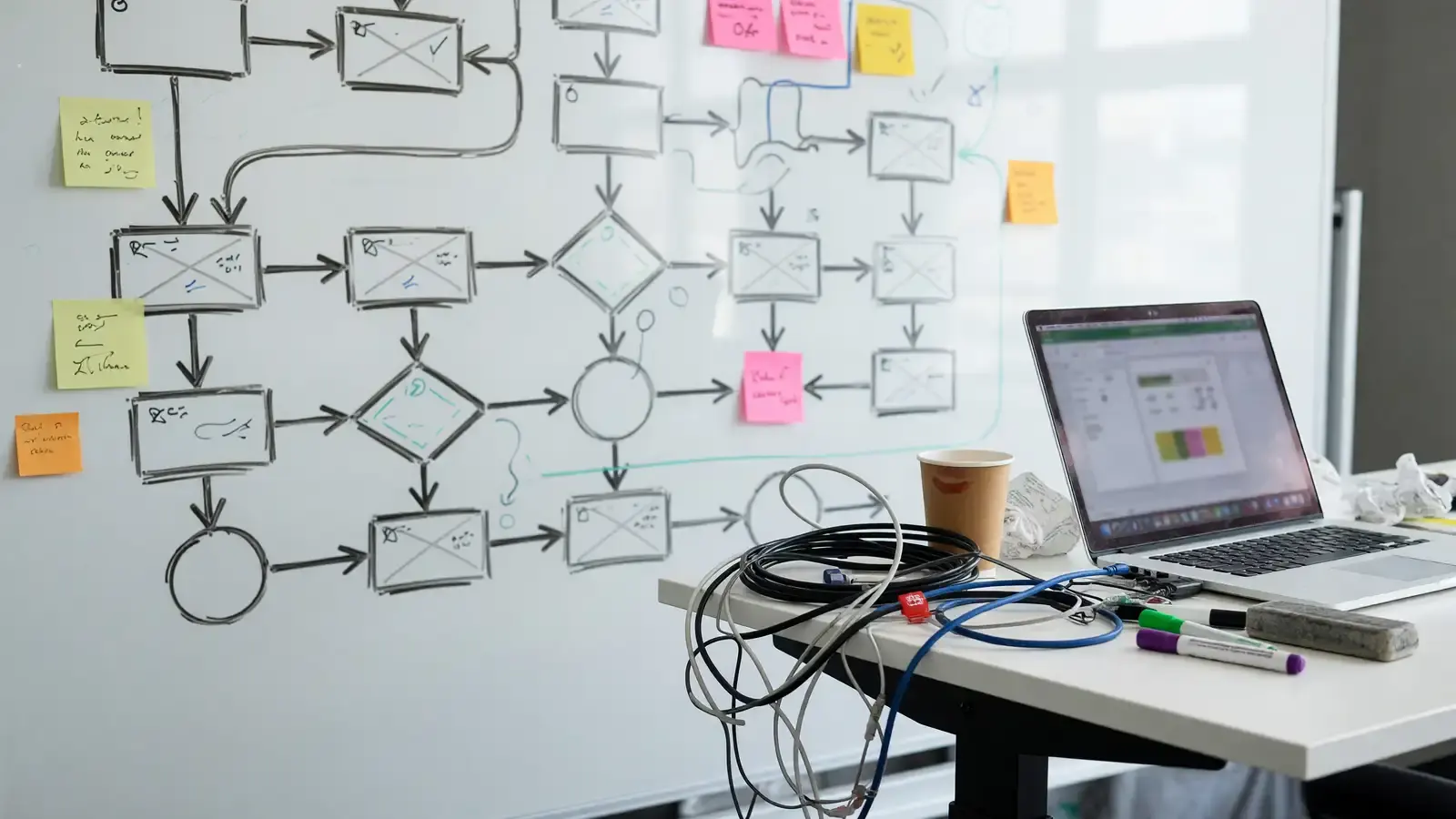
Building AI agents that make decisions, use tools, and maintain conversation context traditionally requires extensive backend infrastructure and complex state management. n8n offers a more practical path: a visual node-based system powered by LangChain that turns AI agent development from “writing thousands of lines of code” into “dragging and connecting nodes.”
This tutorial walks through installing n8n, building an AI agent that queries a knowledge base and calls external APIs, and deploying it to production with Docker.
What Is n8n and Why It Works for AI Agents
n8n is an open-source workflow automation platform that first became known for connecting SaaS applications. But starting in late 2024, n8n heavily expanded its AI capabilities by integrating the LangChain JavaScript framework directly, letting users build AI agent workflows visually.
Compared to pure code approaches (like writing LangChain in Python), n8n’s advantages are:
- Visual editing: Drag and drop nodes to build complex agent logic without writing code line by line
- Built-in integrations: Connect directly to OpenAI, Anthropic, HuggingFace, and other LLM providers without handling API authentication yourself
- Memory management: Built-in memory nodes for maintaining conversation context
- Tool calling: Connect Gmail, Google Sheets, Slack, and other external services through tool nodes
- Production deployment: Enterprise-grade deployment architecture with Docker Compose, PostgreSQL, and Redis
n8n’s AI agent architecture sits on top of LangChain and uses a hierarchical node system. Root nodes (cluster nodes) define the main agent logic, while sub-nodes provide specific capabilities: language model integration, memory management, and tool execution. This design lets you compose complex agent behaviors like building with blocks. Each node handles one responsibility, and you connect them to create the full workflow. The data flows between nodes as JSON objects, which makes it straightforward to inspect and debug at any point in the pipeline.
Four AI Workflow Architecture Patterns
n8n supports four main AI workflow architectures, and choosing the right one depends on your use case and cost constraints.
Chained Requests: Execute multiple AI model calls sequentially with intermediate processing. Compared to a single monolithic agent call, this approach can reduce API costs by 30-50% because you can use different model tiers for different steps. For example, use a cheap model for initial classification and a more capable model for the actual reasoning task.
Single Agent with State: Maintain context throughout workflow execution using memory nodes. Ideal for conversational interfaces like customer service bots or personal assistants where the agent needs to remember previous messages in the conversation.
Multi-Agent with Gatekeeper: Centralized control with specialized agent delegation. A central agent understands user intent and delegates specific tasks to specialized agents. This is highly modular and easy to extend because you can add new specialist agents without modifying the gatekeeper logic.
Multi-Agent Teams: Multiple specialized agents operate in parallel, each handling different tasks, collaborating through distributed decision-making. Suitable for scenarios requiring multi-angle analysis, such as research workflows that need to gather information from multiple sources simultaneously.
Why Teams Choose n8n Over Writing Code
Before diving into the setup, it’s worth understanding where n8n fits in the AI agent tooling landscape. If you’re a solo developer comfortable with Python, writing LangChain code directly gives you maximum flexibility. But most teams aren’t solo developers. They include product managers who need to understand what the agent does, designers who want to tweak prompts without asking engineering, and operations people who need to monitor and adjust workflows without deploying code.
n8n addresses this by making the entire workflow visible and editable in a browser. When someone on the team asks “why did the agent send that email?”, you can open the execution history and trace exactly which nodes fired, what data flowed through them, and where the decision was made. That transparency is hard to replicate with code-only approaches.
The platform also handles a lot of the plumbing that you’d otherwise build yourself: webhook management, error handling, execution logging, credential storage, and retry logic. These aren’t glamorous features, but they save significant time when you’re trying to get an agent into production rather than just running it in a Jupyter notebook.
Setting Up Your Environment
Option 1: npm Installation (For Development and Testing)
# Verify Node.js 20 or later
node --version

# Install n8n globally
npm install n8n -g

# Start n8n
n8n start
After starting, open your browser to http://localhost:5678 to access the n8n workflow editor. This setup works fine for development and testing, but for production use, you’ll want the Docker approach below because it includes PostgreSQL for persistent storage and Redis for execution queueing.
Option 2: Docker Installation (Recommended for Production)
Create a docker-compose.yml:
version: '3.8'
services:
  n8n:
    image: n8nio/n8n:latest
    ports:
      - "5678:5678"
    environment:
      - N8N_BASIC_AUTH_ACTIVE=true
      - N8N_BASIC_AUTH_USER=admin
      - N8N_BASIC_AUTH_PASSWORD=your-secure-password
      - DB_TYPE=postgresdb
      - DB_POSTGRESDB_HOST=postgres
      - DB_POSTGRESDB_PORT=5432
      - DB_POSTGRESDB_DATABASE=n8n
      - DB_POSTGRESDB_USER=n8n
      - DB_POSTGRESDB_PASSWORD=your-db-password
      - EXECUTIONS_MODE=queue
      - QUEUE_BULL_REDIS_HOST=redis
    volumes:
      - n8n_data:/home/node/.n8n
    depends_on:
      - postgres
      - redis

  postgres:
    image: postgres:15
    environment:
      - POSTGRES_DB=n8n
      - POSTGRES_USER=n8n
      - POSTGRES_PASSWORD=your-db-password
    volumes:
      - postgres_data:/var/lib/postgresql/data

  redis:
    image: redis:7-alpine
    volumes:
      - redis_data:/data

volumes:
  n8n_data:
  postgres_data:
  redis_data:
docker compose up -dUsing Redis queue mode (EXECUTIONS_MODE=queue) enables horizontal scaling with multiple n8n workers processing workflow executions in parallel. This matters once you have more than a handful of concurrent workflows, because the default single-process mode can bottleneck under load.
Building Your First AI Agent
Step 1: Configure LLM Connection
In the n8n editor, set up your language model credentials:
- Click Credentials in the left sidebar
- Choose your LLM provider (OpenAI, Anthropic, etc.)
- Enter your API key and related settings
- Test the connection to confirm it works
n8n supports multiple LLM providers simultaneously, so you can use different models for different agents within the same workspace.
Step 2: Create the AI Agent Workflow
Create a new workflow and add these nodes:
Trigger node: Choose Webhook (for receiving external requests) or Chat Trigger (for conversational interaction). The Chat Trigger is useful for testing because it gives you an in-editor chat interface.
AI Agent node: This is the core orchestration layer. Configure it with:
- Your LLM credentials
- A system prompt defining the agent’s role and behavior
- A connected Memory node for conversation context
Language model sub-node: Connect to the AI Agent node, select your configured LLM provider and model. The sub-node connects as a child of the AI Agent node, not as a separate step in the workflow.
Tool sub-nodes: Add as needed:
- HTTP Request tool: Call external APIs
- Gmail tool: Read and write emails
- Google Sheets tool: Manipulate spreadsheets
- Code tool: Execute custom JavaScript for logic that doesn’t fit other nodes
Step 3: Add Memory
Connect a memory node to the AI Agent node and choose a memory type:
- Window Buffer Memory: Keeps the last N conversation turns. Works well for most use cases and keeps token usage predictable.
- Vector Store Memory: Stores conversations in a vector database with semantic search support. Good for knowledge-intensive applications where the agent needs to recall specific past interactions.
- Postgres Chat Memory: Stores conversation history in PostgreSQL. Suitable for production environments needing persistence across restarts.
Step 4: Test and Debug
Use n8n’s built-in Chat Hub to test your agent:
- Click the Chat button in the top right of the workflow editor
- Type questions in the Chat Hub
- Watch the agent’s reasoning process and tool call logs in real time
- Check the Executions page for complete execution history, including any errors
The execution history is particularly useful because it shows you exactly what data passed between each node, which helps when something isn’t working as expected.
Advanced: Knowledge Base Integration
Letting agents query custom knowledge bases is one of the most common and useful patterns. n8n’s approach is to build a two-part system: a knowledge ingestion workflow and a query workflow.
Knowledge ingestion workflow: Trigger → Read data source (PDF, web page, CSV) → Split text into chunks → Embed chunks → Store in n8n Data Table or vector database. This workflow runs once when you add new knowledge, or on a schedule if your sources update regularly.
Query workflow: User asks question → AI Agent searches knowledge base for relevant chunks → Uses found information to generate an answer. The agent can also cite sources if you structure the knowledge entries to include attribution.
n8n provides ready-made templates to get started quickly:
- Knowledge ingestion template:
n8n.io/workflows/13353 - Q&A agent template:
n8n.io/workflows/13354
These templates cover the common patterns and can be customized for your specific data sources and use cases.
Deploying to Production
Environment Variables
Production requires additional configuration beyond the basic Docker setup:
# Security
N8N_BASIC_AUTH_ACTIVE=true
N8N_BASIC_AUTH_USER=admin
N8N_BASIC_AUTH_PASSWORD=strong-password-here

# Database
DB_TYPE=postgresdb
DB_POSTGRESDB_HOST=your-db-host
DB_POSTGRESDB_PORT=5432
DB_POSTGRESDB_DATABASE=n8n
DB_POSTGRESDB_USER=n8n
DB_POSTGRESDB_PASSWORD=strong-db-password

# Execution mode
EXECUTIONS_MODE=queue
QUEUE_BULL_REDIS_HOST=your-redis-host

# Webhook URL (for external triggers)
WEBHOOK_URL=https://your-domain.com
The WEBHOOK_URL setting is critical if your workflows receive external triggers, because n8n needs to know its public URL to construct callback URLs correctly.
Monitoring and Scaling
- Use n8n’s built-in Executions page to monitor workflow execution status and spot failures quickly
- Add worker instances via Redis queue mode for horizontal scaling when execution volume grows
- Set up error notifications (Email, Slack) so you know immediately when something breaks
- Periodically clean old execution records to keep the database from growing indefinitely
- Consider setting up a reverse proxy (nginx or Caddy) in front of n8n for HTTPS termination and rate limiting
Comparison with Pure Code Approaches
| Aspect | n8n | Python + LangChain |
|---|---|---|
| Learning curve | Low, visual operation | High, requires programming skills |
| Development speed | Fast, drag and complete | Slow, lots of boilerplate code |
| Flexibility | Medium, limited by available nodes | High, fully customizable |
| Maintenance | Simple, one-click Docker deployment | Complex, manage your own infrastructure |
| Team collaboration | Good, visual workflows easy to communicate | Poor, code requires technical background |
| Cost | Low, open source and free | Low, but requires more development manpower |
n8n suits scenarios where you need rapid prototyping, have non-technical team members, or want to lower the barrier to building AI agents. If you need highly customized model fine-tuning or complex multi-step reasoning logic that goes beyond what the available nodes support, Python approaches remain more flexible. Many teams end up using both: n8n for the orchestration layer and Python for the custom logic that gets called through the Code tool node.
Conclusion
n8n demotes AI agent development from “engineering project” to “workflow design.” Connect LLMs, memory, and tools through visual nodes, then deploy to production with Docker, all without writing extensive code. For teams wanting to quickly validate AI agent ideas, n8n is one of the most practical options available right now. The combination of LangChain’s agent capabilities with n8n’s visual workflow engine creates something that’s both powerful enough for real production use and accessible enough for non-engineers to understand and modify.
Complete workflow templates and more tutorials can be found on the n8n official documentation and community forums.
Reader Dispatches
No reader responses yet. Share your technical perspective below.
Related Posts
How to Set Up a Complete Local AI Stack with Ollama and Open WebUI in 2026
A step-by-step tutorial for running AI models on your own hardware using Ollama and Open WebUI — no cloud subscriptions, no data leaving your machine.
Claude API context compaction: you pick when to summarize
On-demand compaction landed around Sept 14. How to call compact-2026-09-04, swap the signed block, and why this is not a memory store.
Build a Local AI Voice Assistant with Whisper, Ollama, and Piper: A Complete 2026 Tutorial
Step-by-step guide to creating a fully offline voice assistant using OpenAI Whisper for speech recognition, Ollama for LLM inference, and Piper for text-to-speech.