Browser-Use: The Missing Link Between LLMs and Real-World Action
Stop building brittle scrapers. Here is how 'browser-use' gives your AI agents eyes and hands to navigate the modern web, plus a critical look at the costs and reality of deployment.
For the past year, the biggest frustration with LLMs has been their isolation. You can ask ChatGPT to write a shopping list, but it can’t log into Amazon and buy the groceries. You can ask it to analyze a competitor’s pricing, but it can’t navigate a dynamic React app to find the data.
Enter Browser-Use.
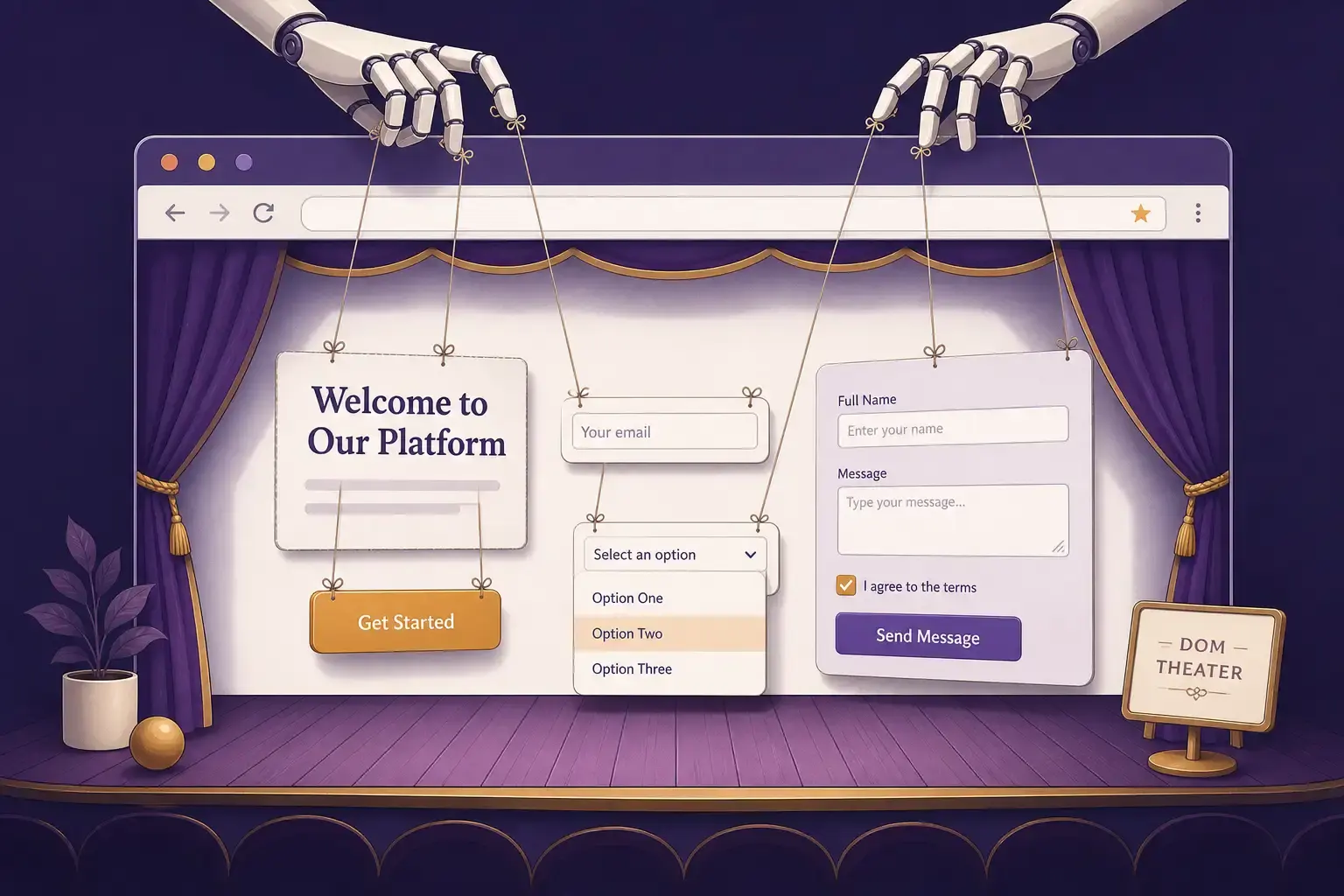
This open-source Python library is currently trending for a reason: it effectively gives LLMs “eyes” (via Vision models) and “hands” (via Playwright). It transforms the web from a chaotic mess of HTML into an accessible interface for AI agents.
But is it ready for production, or is it just a fun toy? I dug into the code and the documentation to give you the reality check.
The Problem with Traditional Automation
If you’ve ever written a Selenium or Puppeteer script, you know the pain. You spend hours finding the perfect CSS selector (div.product-card > button.add-to-cart), only for the website to update its layout the next day, breaking your script.
Browser-Use takes a different approach. Instead of hard-coded selectors, it uses an LLM (like GPT-4o or Claude 3.5 Sonnet) to look at the page—literally. It takes screenshots, analyzes the interactive elements, and decides what to click based on your natural language instructions.
🚀 Quick Start: From Zero to Agent
Let’s skip the fluff. You need Python 3.11+ (this is non-negotiable).
1. Installation
While the official docs recommend uv (which is great), standard pip works fine if you are in a virtual environment.
# Install the package
pip install browser-use

# Install the browser binaries (Crucial step!)
playwright install
2. The “Hello World” of Browser Agents
You will need an API key for a vision-capable model. GPT-4o is the standard, but Claude 3.5 Sonnet is often better for coding and navigation tasks.
Create a file named agent.py:
import os
import asyncio
from langchain_openai import ChatOpenAI
from browser_use import Agent

# ⚠️ Ensure you have OPENAI_API_KEY in your environment variables
# os.environ["OPENAI_API_KEY"] = "sk-..."

async def main():
    # 1. Initialize the Brain
    # We use GPT-4o because it has excellent vision capabilities
    llm = ChatOpenAI(model="gpt-4o")

    # 2. Define the Agent
    agent = Agent(
        task="Go to https://github.com/browser-use/browser-use, find how many stars it has, and tell me who the latest contributor is.",
        llm=llm,
    )

    # 3. Run the Agent
    # The agent will open a browser, look at the screen, and figure it out.
    result = await agent.run()

    print("\n--- Final Result ---")
    print(result)

if __name__ == "__main__":
    asyncio.run(main())
What just happened? The agent didn’t just “scrape” HTML. It opened a headless browser, identified the “Stars” counter visually, identified the “Contributors” section, and extracted the answer. If GitHub changes its CSS class names tomorrow, this script will likely still work.
🛠️ Under the Hood: How It Actually Works
The magic lies in the loop. Browser-Use doesn’t just fire one prompt. It operates in a Thought-Action-Observation cycle:
- Observation: The library uses Playwright to take a screenshot and extract the accessibility tree (DOM snapshot).
- Thought: It sends this data to the LLM with a system prompt like: “You are looking at a browser. The user wants to find X. Here are the clickable elements labeled with numbers. What should we do next?”
- Action: The LLM responds with a structured command, e.g.,
{"click": "12"}or{"type": "search query"}. - Execution: Browser-Use executes the Playwright command.
- Repeat: The cycle continues until the task is done.
The “Vision” Factor
By default, use_vision=True is enabled. This is critical. Without vision, the LLM is blind to layout, color, and visual hierarchy. With vision, it understands that a “Red Button” implies danger or that a popup needs to be closed via the “X” icon in the corner.
💡 Advanced Usage: Persistence & Context
A common issue with AI agents is that they have amnesia. Every time you run the script, they open a fresh browser instance. If you need to log into a site (like LinkedIn or Gmail), this is a nightmare due to 2FA.
The Solution: Persistent Contexts.
You can pass an existing Playwright BrowserContext to the agent. This allows you to reuse cookies and local storage.
from browser_use import Agent, Browser, BrowserConfig
from langchain_openai import ChatOpenAI
import asyncio

async def persistent_session():
    llm = ChatOpenAI(model="gpt-4o")

    # Configure browser to run in HEADED mode (so you can see it)
    # and disable security features to avoid some bot detection
    browser = Browser(
        config=BrowserConfig(
            headless=False,
            disable_security=True
        )
    )

    # Create a context (this is where cookies live)
    context = await browser.new_context()

    agent = Agent(
        task="Log into Reddit (I will handle the manual login if needed) and find the top post on r/python.",
        llm=llm,
        browser=browser,
        browser_context=context,
    )

    await agent.run()

    # Ideally, you would save the storage state here to a file
    # await context.storage_state(path="auth.json")

    await browser.close()

if __name__ == "__main__":
    asyncio.run(persistent_session())
⚠️ The Reality Check: Costs & Limitations
Before you fire your QA team and replace them with this script, consider the following:
1. The “Token Tax”
Every step the agent takes involves sending a screenshot and a DOM tree to GPT-4o.
- Cost: A simple task (e.g., “Find a flight price”) might take 10 steps. That could easily cost $0.10 - $0.50 per run.
- Latency: It is slow. The round-trip to the LLM takes seconds. This is not for high-frequency trading.
2. Hallucinations
The agent can get confused. It might click a “Sign Up” button when you asked it to “Sign In”. It might get stuck in a loop trying to close a popup that isn’t there. You need to set max_steps (default is 100) to prevent it from burning your API credits in an infinite loop.
3. Bot Detection
While browser-use has some stealth features, sophisticated sites (Cloudflare, Akamai) will still flag automated browsers. The library supports connecting to existing Chrome instances to mitigate this, but it’s an arms race.
🔍 Verdict: When to Use It?
Do NOT use Browser-Use if:
- You need to scrape 10,000 pages (too expensive/slow).
- The website has a public API (use the API!).
- Speed is critical.
DO use Browser-Use if:
- Complex Workflows: You need to navigate a multi-step wizard or fill out complex forms.
- QA Testing: You want to test user flows (“Can a user actually checkout?”) without maintaining brittle Cypress scripts.
- Ad-Hoc Research: You are building a personal assistant to “Find me a table for two at an Italian restaurant tonight.”
Browser-Use is a glimpse into the future of software interaction. It’s not perfect, but it bridges the gap between “text generation” and “real-world action” in a way that feels almost magical.
Resources:
Reader Dispatches
No reader responses yet. Share your technical perspective below.
Related Posts
MetaGPT: Stop Chatting with AI, Start Managing an AI Software Company
MetaGPT treats LLMs as a structured software company with PMs, Architects, and Engineers—not just chatbots with tools. Here's how to deploy your own digital workforce.
Moltbot & The Rise of Local Agents: 500+ Ways to Give AI Control
Moving from chatbots that talk to agents that act. A deep dive into the Moltbot ecosystem with 565+ local skills—from Docker deployment to grocery ordering.
Clawdbot: The 'Agentic' AI That Actually Does the Work (And Why It Scares Me)
Move over, chatbots. Clawdbot is an open-source agent that lives on your Mac, controls your terminal, and texts you back on WhatsApp. Here is the deep-dive technical review and setup guide you won't find in the hype headlines.