MCP Practical Guide: Building Reliable AI Agent Workflows with Model Context Protocol in 2026
Learn MCP from scratch — build standardized AI Agent tool integrations with complete code examples, architecture design, and best practices.
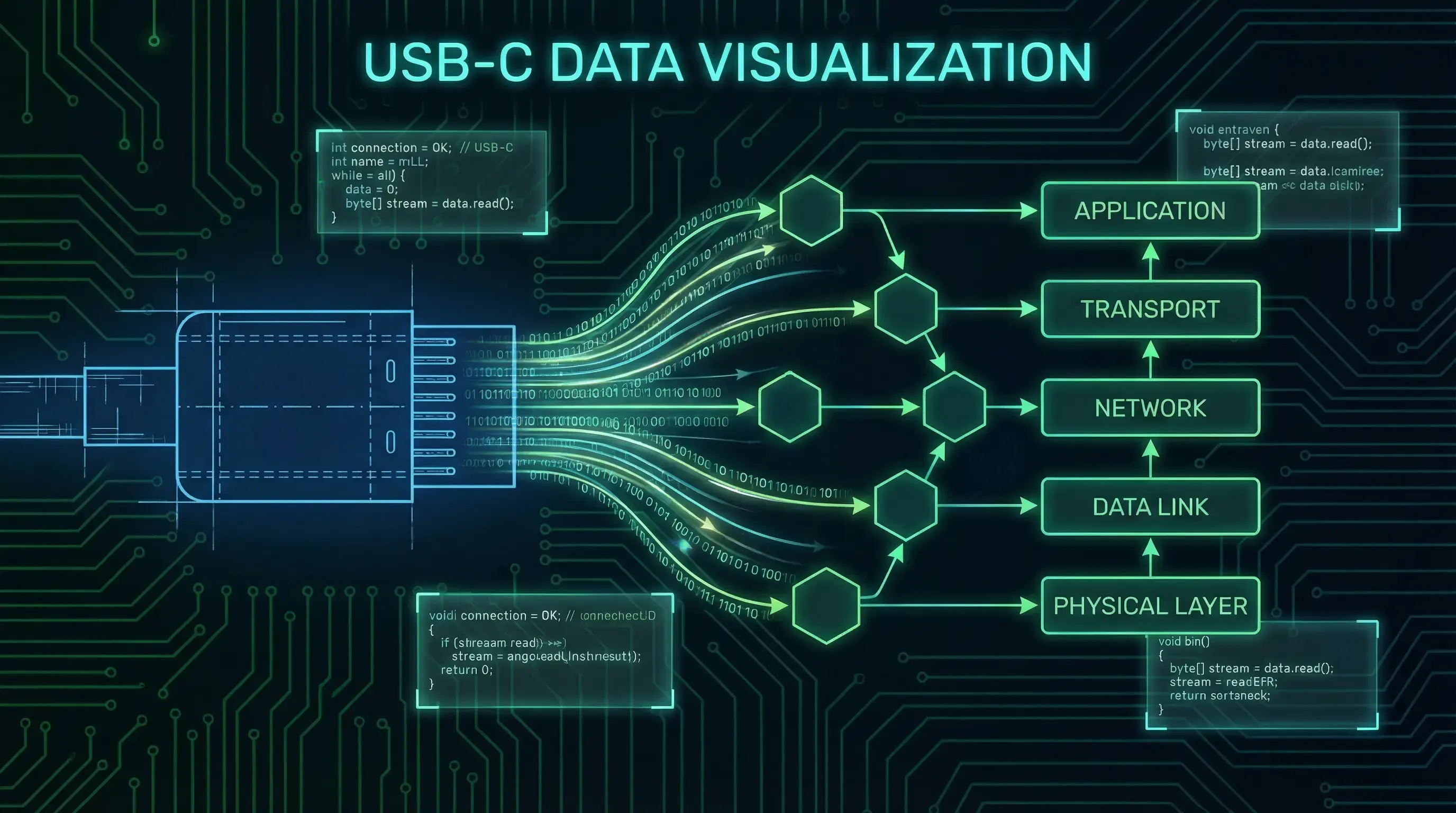
Have you ever spent an entire day configuring an AI assistant to read local files, query databases, and call APIs, only to rewrite all the integration code when switching to a different tool? Or watched your team use completely different approaches to connect LLMs with tools, turning maintenance into a nightmare?
This is exactly what Model Context Protocol (MCP) solves. In December 2025, the Linux Foundation established the Agentic AI Foundation (AAIF), with Anthropic, OpenAI, Google, Microsoft, and other tech giants as founding members. One of the core standards they’re driving is MCP — an open-source protocol dubbed “the USB-C port for AI applications.”
This tutorial takes you from zero to a working AI Agent workflow with real code.
Why MCP?
Before MCP, every AI application had to implement its own tool-calling logic. Want Claude to read Google Drive files? You need OAuth authentication, Google Drive API implementation, tool description formatting for the LLM, error handling and retry logic, and secure data transmission.
Switch to Notion? Start over. Switch to GitHub? Again. Every tool requires its own integration code.
MCP’s core idea is simple: standardize tool exposure and tool invocation. Just as USB-C lets all devices charge and transfer data through one interface, MCP lets all AI applications access tools the same way.
According to Anthropic’s data, MCP reduces integration latency by 40%, and an MCP Server written once can be used by any MCP-compatible client.
MCP Core Architecture
MCP uses a three-layer architecture:
┌─────────────────┐
│   MCP Host      │  ← AI app (Claude Desktop, IDE, custom app)
│  (LLM App Layer)│
└────────┬────────┘
         │
┌────────▼────────┐
│   MCP Client    │  ← Protocol layer (handles comms, auth, errors)
│  (Protocol Layer)│
└────────┬────────┘
         │
┌────────▼────────┐
│   MCP Server    │  ← Tool layer (Google Drive, Slack, databases)
│  (Tool Layer)   │
└─────────────────┘
Three Core Concepts
- MCP Host: The application running the LLM (Claude Desktop, Cursor, your custom AI app)
- MCP Client: Client library implementing the MCP protocol, responsible for communicating with Servers
- MCP Server: Service exposing specific tool capabilities (can be a local process or remote service)
Key point: Host and Server communicate via standardized JSON-RPC protocol. This means your MCP Server works with any MCP-compatible Host.
Hands-On: Building Your First MCP Server
Let’s build a practical MCP Server that lets an AI assistant read and search local Markdown files — useful for managing personal knowledge bases or documentation.
Step 1: Environment Setup
# Create project directory
mkdir my-mcp-server
cd my-mcp-server

# Install FastMCP (Anthropic's recommended Python framework)
pip install fastmcp

# Create main file
touch server.py
Step 2: Implement the MCP Server
from fastmcp import FastMCP
from pathlib import Path
from typing import List

# Initialize MCP Server
mcp = FastMCP("markdown-knowledge-base")

# Tool 1: List all Markdown files
@mcp.tool()
def list_markdown_files(directory: str = ".") -> List[str]:
    """
    List all Markdown files in the specified directory

    Args:
        directory: Directory path to search (defaults to current)
    Returns:
        List of Markdown file paths
    """
    path = Path(directory)
    if not path.exists():
        return [f"Error: Directory {directory} does not exist"]
    md_files = list(path.rglob("*.md"))
    return [str(f.relative_to(path)) for f in md_files]

# Tool 2: Read Markdown file content
@mcp.tool()
def read_markdown_file(file_path: str) -> str:
    """Read the content of a specified Markdown file"""
    try:
        with open(file_path, 'r', encoding='utf-8') as f:
            return f.read()
    except FileNotFoundError:
        return f"Error: File {file_path} does not exist"
    except Exception as e:
        return f"Error: Cannot read file - {str(e)}"

# Tool 3: Search Markdown file content
@mcp.tool()
def search_markdown_content(
    keyword: str, directory: str = "."
) -> List[dict]:
    """Search for keywords in Markdown files"""
    path = Path(directory)
    results = []
    for md_file in path.rglob("*.md"):
        try:
            with open(md_file, 'r', encoding='utf-8') as f:
                lines = f.readlines()
            matches = [
                {"line_number": i+1, "content": line.strip()}
                for i, line in enumerate(lines)
                if keyword.lower() in line.lower()
            ]
            if matches:
                results.append({
                    "file": str(md_file.relative_to(path)),
                    "matches": matches
                })
        except Exception:
            continue
    return results

# Start Server
if __name__ == "__main__":
    mcp.run()
Step 3: Configure MCP Client
For Claude Desktop, add this Server to your config file:
macOS: ~/Library/Application Support/Claude/claude_desktop_config.json
{
  "mcpServers": {
    "markdown-kb": {
      "command": "python",
      "args": ["/path/to/your/server.py"],
      "env": {}
    }
  }
}
Restart Claude Desktop, and you can use these tools in conversation:
You: Find all notes mentioning "MCP"
Claude: [Calls search_markdown_content tool]
        Found 3 files containing "MCP"...
Advanced Techniques
1. Adding Resources
Beyond Tools, MCP supports exposing Resources:
@mcp.resource("markdown://{file_path}")
def get_markdown_resource(file_path: str) -> str:
    """Expose Markdown files as MCP resources"""
    with open(file_path, 'r', encoding='utf-8') as f:
        return f.read()
2. Prompt Templates
Predefine commonly used prompt templates:
@mcp.prompt()
def summarize_markdown(file_path: str) -> str:
    """Generate a summary prompt for a Markdown file"""
    content = read_markdown_file(file_path)
    return f"""Please summarize the following Markdown file:

{content}

Requirements:
- No more than 3 sentences
- Extract core insights
- Use clear, concise language"""
3. Error Handling and Logging
Production environments need robust error handling:
import logging

logging.basicConfig(level=logging.INFO)
logger = logging.getLogger(__name__)

@mcp.tool()
def safe_read_file(file_path: str) -> str:
    try:
        logger.info(f"Reading file: {file_path}")
        with open(file_path, 'r', encoding='utf-8') as f:
            return f.read()
    except FileNotFoundError:
        logger.error(f"File not found: {file_path}")
        return "Error: File does not exist"
    except PermissionError:
        logger.error(f"Permission denied: {file_path}")
        return "Error: Insufficient permissions"
Multi-Agent Collaboration: A2A Protocol
MCP solves tool integration, but what about multiple AI Agents collaborating? That’s where A2A (Agent-to-Agent) protocol comes in.
A2A is another standard driven by AAIF, enabling different Agents to communicate and delegate tasks. Typical scenarios:
- Research Agent gathers info → Analysis Agent processes data → Writing Agent generates reports
- Support Agent identifies issues → Technical Agent provides solutions
The relationship: MCP is the Agent-to-Tool interface; A2A is the Agent-to-Agent interface.
FAQ
Q: Must MCP Servers be written in Python? A: No. Official SDKs exist for Python (FastMCP) and TypeScript, with community implementations in Rust, Go, and more.
Q: How does MCP differ from LangChain Tools? A: LangChain Tools are framework-specific. MCP is a cross-framework standard — any MCP-compatible application can use your Server.
Q: How do I secure an MCP Server? A: Three key points: use environment variables for sensitive info, implement permission checks (restrict accessible files/directories), and validate/sanitize external inputs.
Q: Does MCP support remote Servers? A: Yes. You can run remote MCP Servers via HTTP/WebSocket, suitable for team tool sharing or cloud deployment.
Learning Resources
- Official Docs: modelcontextprotocol.io
- FastMCP GitHub: github.com/jlowin/fastmcp
- MCP Servers Collection: github.com/modelcontextprotocol/servers
- AAIF Website: agentic.foundation
Next Steps
You now have MCP’s core concepts and practical skills. Here’s what to do next:
- Pick a real scenario (workflow automation, data analysis, content management)
- Implement a Server with FastMCP
- Test in Claude Desktop or your own application
- Consider open-sourcing for the community
MCP’s value lies in its ecosystem. As more developers contribute Servers, AI Agent capabilities expand continuously. Every MCP Server you write could become the foundation for someone else’s next killer app.
Start building — in 2026, standardization is step one for AI application development.
Reader Dispatches
No reader responses yet. Share your technical perspective below.
Related Posts
OpenAI Agents SDK Tutorial: Build a Research Agent That Actually Works with Responses API and MCP
Learn how to build a practical research agent with OpenAI Agents SDK, Responses API, and Hosted MCP Tool. This guide focuses on architecture, approvals, and tool boundaries instead of toy demos.
Build Autonomous AI Agents from Scratch in 2026: Complete Practical Guide
Detailed tutorial on building real autonomous AI agents from scratch in 2026, including framework selection, tool integration, multi-step reasoning implementation, and production deployment best practices.
What Can OpenClaw Actually Do? 6 Practical Use Cases That Make Sense
This bilingual guide breaks down six practical OpenClaw use cases, from messaging-based personal assistance and browser automation to workspace editing, local exec, heartbeat checks, and precise cron workflows.